• Skip to primary navigation
  • Skip to main content

My Lifestyle Dream

The journey of a thousand miles begins with one small step

  • Home
  • Print on Demand
  • Website Monetization
  • Dropshipping
  • Matched Betting
  • Social Trading
  • Blog
  • Travel
  • About

print on demand

Printify Review | Is this the Cheapest Print on Demand Provider?

9th April 2020 By martinos74 Leave a Comment

Printify Review

Printify is one of the leading Print on Demand providers in the market and in this article we’ll take a deep dive into their products and services and and give you a full walkthrough and review of their interface to help you decide if they’re the right POD for you!

What is Printify?

Lets say I want to set up an online shop on a platform like Etsy and I want to sell products like T-Shirts. If someone buys a shirt from my store then I’d either have to print the shirts and distribute them myself or I can find a partner to work with who takes away all of that hassle….

This is where Printify comes in…

Print on Demand providers like Printify are used to produce my products and send them to the end customer.

This means that I never need to hold any stock and I don’t get the hassle of distributing any of the products… this is all managed by the Print on Demand provider.
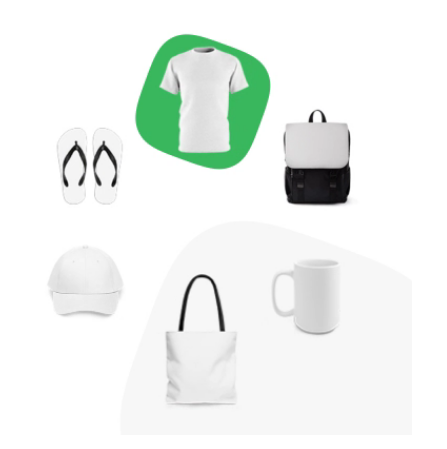
Printify offers a wide range of products from T-shirts and mugs to Iphone cases and backpacks. Pretty much any high street apparel product that you think of is going to be available.

Printify Walk Through

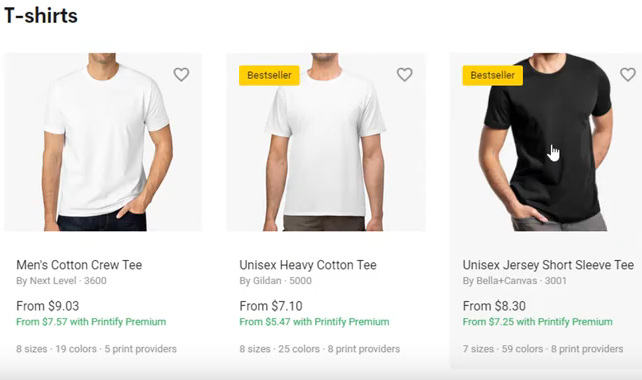
Step 1 – Choose Your Products

The first thing you need to choose is the product you want to sell from their huge catalogue.  For example for T-Shirts alone there are 22 different products to choose from:
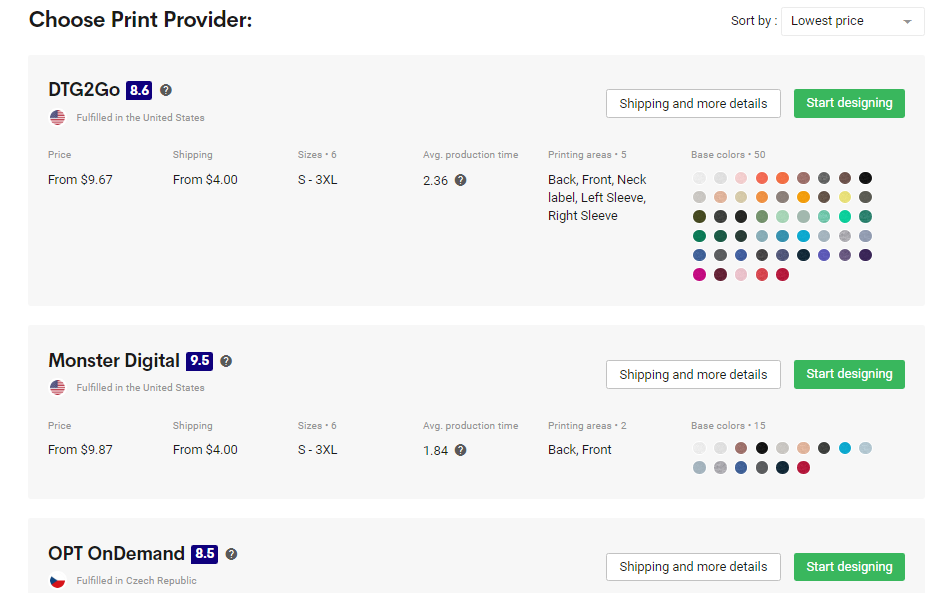
Step 2 – Choose Your Print Provider

Not all of the products will be provided by each print provider, however, to help you choose you’ll get a list of details from review score, delivery times and price to the different product options they have available:
Step 3 – Upload Your Design 

Find the image that you want, drag it onto the T-Shirt, where you can re-size and position the image as required. In this section you can also choose which colors you’d like to offer the product on as well as different print areas including back, sleeves and inner label:

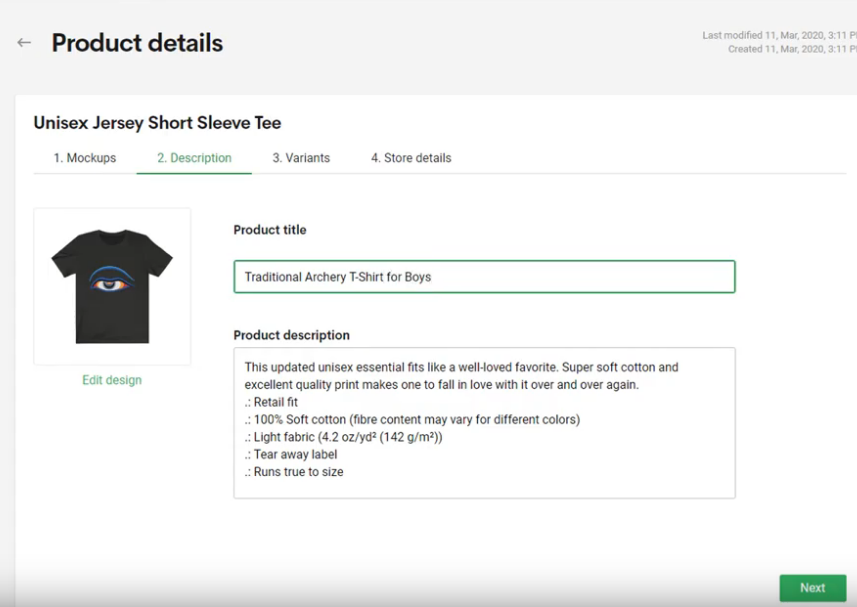
Step 4 – Add Your Product Details

In this step, you just need to add your title and the description for your product:
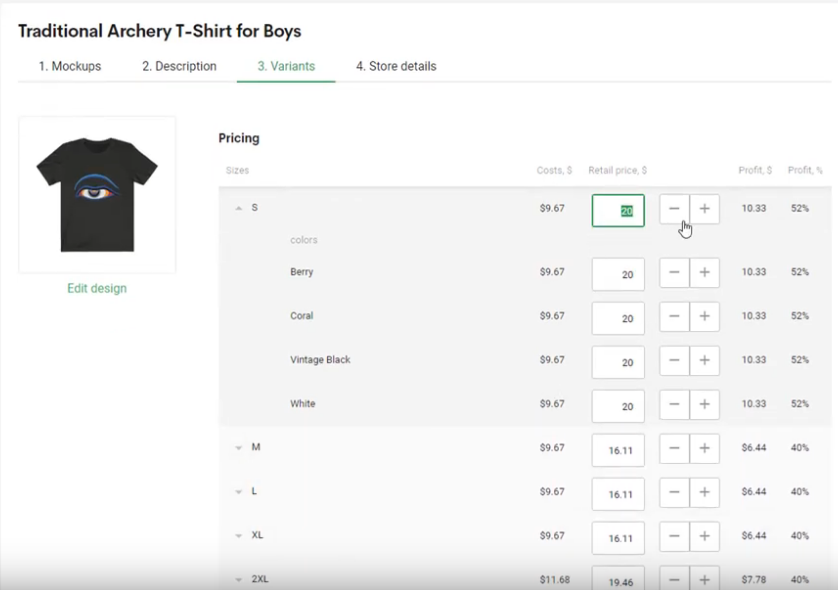
Step 5 – Configure Pricing

In this step you set your prices for your product and can add in different prices per color / size option:
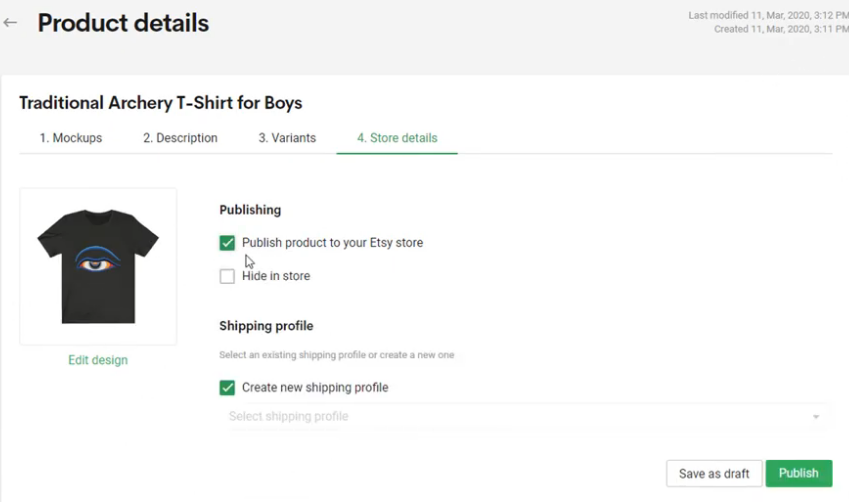
Step 6 – Publish Your Listing

In this section you choose where you want to publish your listing. In the example below I have already set up the integration with my Etsy store so if I select the checkbox here, then it will publish it directly to Etsy and will sync any orders that come in from that platform:
Printify Integrations

Within the Printify interface you can set up integrations with the following providers:

  • Etsy
  • Shopify
  • Wix
  • Ebay
  • WooCommerce

The benefit of doing this is that when you create a product listing, you can push the product directly into your store and do not need to create a separate product listing.

The other advantage of these integrations is if you sell a shirt on one of these other platforms, it will automatically push the product into Printify, who will print the shirt, ship it to the customer, send out shipping details and update the order status.

This means you can pretty much take a hands off approach after you have set up these integrations and you will only need to focus on customer service issues, and just checking that your order gets pushed through.

Printify’s Bad Points

Customer Support

Because you are dealing with an intermediary rather than the Printers themselves there is an extra step in the way of being able to resolve any issues.

You’re basically contacting someone to contact someone else, which inevitably slows down the whole process and makes it really difficult ot make any changes to your orders once they have been submitted.

I made mistakes on a couple of orders and the problem with Printify is that as soon as you click the ‘submit order’ button it is very difficult for you to stop this order as they’ve already sent this into someone elses system. Printful is a much better option in this respect as their customer support is awesome and can turn things around really quickly.

There is also no online chat facility which is a major pain.

Order Times

I had a few large orders that I needed to get out for St Patricks Day and when I looked at the average production times that were quoted I thought I had plenty of time to get the orders out.

However, that wasn’t the case and a couple of my orders were held up and completely missed the deadline. It was really difficult to get any information about what was happening with the order as per my previous point.

In the end I found out that because one of my orders have shirts of different sizes, they weren’t all printed in the same batch and they also had to reprint a couple of the shirts, so they held up the entire order… this could have cost me over $200 but my customer was really understanding and St Patricks Day was canceled anyway due to COVID-19!!!

Processing Manual Orders

I might be missing a trick here but I find the process you need to go through to process new orders, quite laborious as you have to create a brand new product listing every time, which seems kind of pointless.

I’d been selling a lot of personlized shirts so it would have been much easier to just create one product listing and swap the design out each time, but that wasn’t particularly easy to do.

Printify’s Good Points

Price

The biggest advantage for me and the main reason to use Printify will be its price.

For example if I take one of the most popular T-Shirts as an example, The Bella + Canvas 3001, then Printify is offering this for less than $10 per shirt + $4 postage.

This comes in $4 cheaper than Printful and is a lot cheaper than any other Print on Demand provider I could find, and because margins are so tight in this business, this has to be a compelling reason to choose them as your provider.

Choice

So, here’s the thing… Printify is not technically a Print on Demand provider themselves, they are more of an intermediary who use other Printers to fulfil their products.

When you choose which product you’d like to sell in your store you are given a range of print providers to choose to fulfil your product. Each print provider has a different price range, production times, range of colors and printing options, as well as a feedback score which will help you decide which printer to use.

I really like this feature because I can choose different printers depending on how fast I need the product and how much of a risk I want to take that the product will be a quality print and arrive on time!

Range of Products

Because Printify uses a collection of different printers the range of products that they have is simply huge. In fact there may actually be too much choice.

For example they have 22 different types of T-shirts that you can choose from!!!

My Summary

I recently made the switch from Printful to Printify, mainly because I wanted to offer a better quality shirt to my customers, yet I still wanted to keep my prices competitive and make a good enough margin per shirt.

This is why I switched to selling the Bella + Canvas 3001 shirt from Printify, which I can buy from them for less than $12 a shirt including shipping fees. On Etsy I can sell these shirts for $25, which gives me a pretty healthy profit per shirt.

So far things have worked well and my deliveries have been fairly smooth apart from some orders I tried to squeeze in for St Patricks Day. I think in general if you’re using Printify give yourself enough time and flexibility in your shipping times in case orders go wrong and you need to go through their customer support.

Printify Review Video

If you’d like to see Printify in action, here’s a little video I put together of the platform:

Filed Under: Print on Demand Tagged With: print on demand

Orbitkit Review – The Ultimate Print on Demand Uploader

7th April 2020 By martinos74 Leave a Comment

Orbitkit Review Header

In this article we’re going to do a walkthrough and review of Orbitkit, which could be the piece of software you need to rapidly expand your Print on Demand business.

What is Orbitkit?

The Print on Demand business has many different providers that you’ll want to upload your designs to in order to maximize the potential sales from your designs.

However, each different Print on Demand provider has different requirements, different ways to upload your designs and different ways to curate your product listings.

In short uploading it is a massive pain in the ass…

Uploading individually to each platform and often the time needed to do this versus the potential reward in sales, means that you just won’t bother uploading to many platforms.

This is where Orbitkit comes in..

Orbitkit provides a central platform where you only need to upload your design once and only curate your product listing once then at a click of a button it will be pushed to the following Print on Demand providers:

  • Redbubble
  • Spreadshirt North America
  • Spreadshirt Europe
  • Teepublic
  • Printify
  • Zazzle
  • CafePress
  • Society6
  • Inktale
  • Fine Art America
  • Teespring
  • Designs By Humans

How Does Orbitkit Work?

Setting up Orbitkit

The first time you get to use Orbitkit it can be a little overwhelming as you have to set up the links with your different Print on Demand providers, but the good news is that you only need to do this once.

Basically the process involves you going into one of your  providers eg Spreadshirt and creating a sample listing. Then all you need to do is copy this listing URL into Orbitkit and this template will then be used for any future designs that you add.

Once these templates are set up you can then create your own collections or themes of templates. For example, you may have designs that only work on dark backgrounds so you would create a collection of ‘Dark Themed’ shirts.

This means that when you upload new designs you can choose which collection you wish to send them to.

Uploading Designs

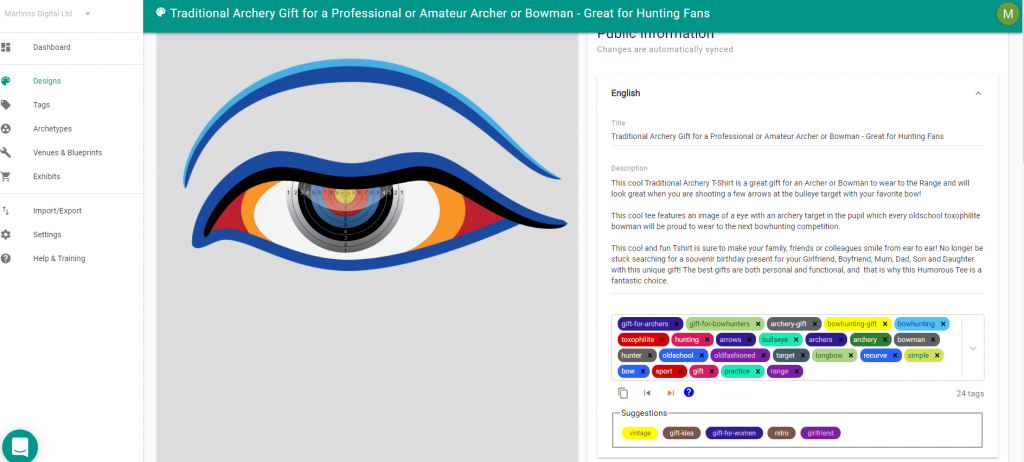
Once you are set up and running all you need to do is drag and drop designs into the system and curate your listings:

Orbitkit Design Interface

The above image shows the interface in Orbitkit where you get to addthe following information:

  • Title
  • Description
  • Keywords/Tags

Once you’re happy with your listing, just choose which collection you want to send this to and sit back and relax and watch your designs upload:

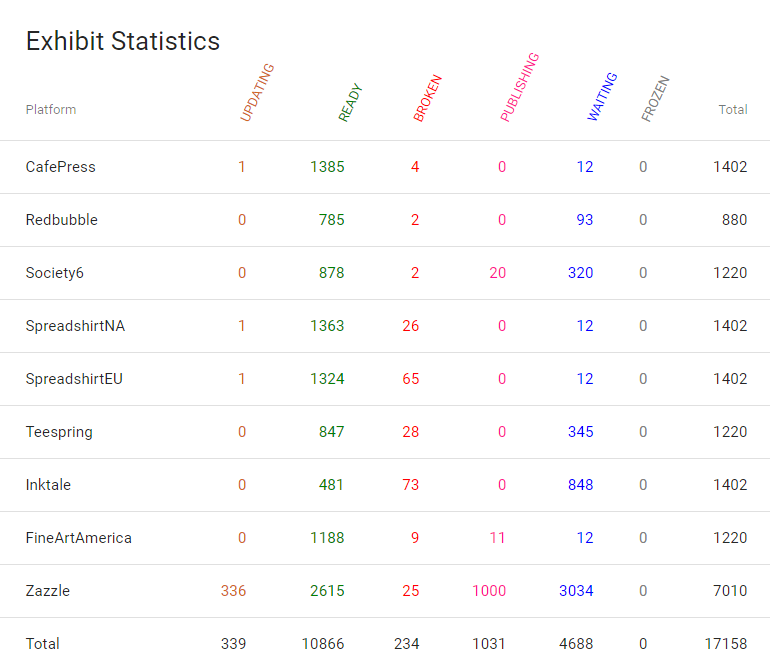
My Orbitkit Dashboard
Do you want to upload in one hit to
Orbitkit Logo

30 Day Moneyback Guarantee

If you're interested in giving Orbitkit a try then click on the link below and you'll be entitled to a 30 day moneyback guarantee!

YES, I want to a 30 days moneyback guarantee

Orbitkit’s Bad Points

Tag Management

Orbitkit saves all of your tags that you upload into one big hierarchical list. It does this so it can easily assign the top keywords to your listings to different PODs who have different limits to the number of tags they allow.

This means that if you place ‘Traditional Archery Shirt’ higher in the hierarchy than ‘Womens Traditional Archery Shirt’ that it will always be applied in this order to all of your listings, where both of these keywords are used. If you change the order around, it will update all of your listings.

This is a bit of a pain but I understand why they have to do it.

The other downside is that the Orbitkit interface for tags is just one huge list and after you’ve uploaded lots of designs this becomes pretty hard to manage and is something I hope they’ll find a better solution to in the future.

Some Integrations have Stalled

The Zazzle integration was working originally when I signed up but they haven’t focused on fixing this for over a year now so I can’t add any more products, which is frustrating.

Some Integrations Aren’t Worth the Effort

This is only my personal point of view but some of the integrations really suck eggs… particularly Teespring where I haven’t had a single sale yet out of over 3000 products!

CafePress, Society6 and FineArtAmerica also are really not worth the effort for me.

Redbubble Account

I set up a new Redbubble account and after I uploaded 10 designs manually I started using the Orbitkit integration. This was fine for a few months but after a while my account got closed down with no explanation.

I did get it restored once and they said my account was flagged as ‘Spam’ but then a few months later it was closed again and I haven’t been able to restore it. I’m pretty sure that’s because  I’m in the UK and because Orbitkit is pushing products via its US server it looked suspicious to Redbubble so they closed my account!

I think most people are fine, especially if you have a long standing account, but just go slow and steady with your uploads to start with and you should be fine.

Scattergun Approach

Because all of the PODs have different requirements and different algorithms, the one size fits all aproach that Orbitkit takes means that your listings won’t be very well targetted to that POD and therefore you’ll have less chance to rank well and therefore slower sales.

On the flip side, however, you will be getting a lot more designs out there and uploaded to other PODs so it’s a fine balance to get right.

Orbit Kit’s Good Points

Rapidly Expand to other PODs

The beauty of Orbitkit is that once you are set up and running then adding new designs to the platform isn’t a lot of hassle.

You would already have set up your keywords and product listing somewhere else so your workflow really only involves upoloading the images, choosing which PODs to send them to and making sure your tags have been correctly assigned. 

Import / Export

Personally I keep all of my design descriptions and keywords in a big spreadsheet, and fortunately there is an import/export function in Orbitkit that will allow you to import spreadsheets with all of this data to save you manually adding this to each listing. This is a massive time saving for my workflow.

Amazing Technical Support Team

Any time I have had an issue the team at Orbitkit have jumped on it and been more than supporting. They always respond really quickly to my requests and have dedicated hours to fixing issues.

They are also really open to feedback and have a great pride in what they do, so full respect to the team there!

How Much Does Orbitkit Cost?

Orbitkit Pricing

Orbitkit might not look that cheap on the face of it, however, I still think it’s a good investment if you want to expand your Print on Demand Portfolio and save yourself some precious time.

Lets do some math…

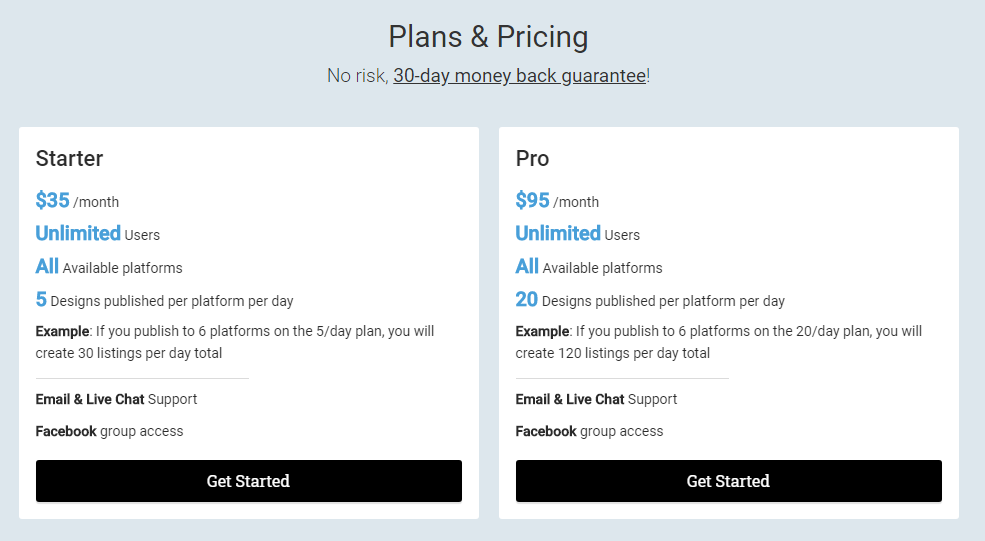
  • A 2 month subscription will cost you $190
  • If you sign up to the 10 PODs that will be 200 designs a day you can create
  • That’s a whopping 12000 designs over 2 months
  • That works out at a cost of 1.5 cents per upload….

Sounds like a bargain to me!

I don’t know anywhere in the world where you’d get a VA to be able to work as quickly or as cheaply as this and if you tried to do this yourself you would surely go out of your mind with boredom!

To me it’s a no brainer, and will really help you grow your Print on Demand Business.

Orbitkit Review Summary

I’ve been using Orbitkit for a couple of years now and if you asked me whether it’s worth the money or not then I would give you a resounding YES.

It is not going to make you rich for sure, however, you will definitely make your monthly/annual subscription back each month and this is just another income stream to add to your Print on Demand Arsenal!

Orbitkit - The Ultimate Uploader

Save time and leave the hard work to Orbitkit and their awesome multi POD provider uploader tool

30 DAY MONEY BACK GUARANTEE

Orbitkit Review Video

If you’d like to see Orbitkit in action, here’s a little video I put together of the platform:
Filed Under: Print on Demand Tagged With: print on demand

Design Pickle Review – How to Outsource Design Cost Effectively

6th April 2020 By martinos74 Leave a Comment

Design Pickle Review Header
5 Star Rating:
 Rated 5 out of 5

If you’re in the Print on Demand business then unless you’re a designer yourself and have plenty of time available you’re going to need someone to create designs for you. There are plenty of different options out there from finding freelancers to employing design students from the local college, but in this article we are going to do a deep dive Design Pickle review and check out the services they provide.

What is Design Pickle?

Design Pickle is a company who have a pool of creative resources who you can hire on a monthly or annual basis to work on a range of design briefs that you provide them. Just think of it as if you are employing an extra member of staff, without having the hassle of recruitment, screening, payroll, HR issues etc etc

Basically Design Pickle have snapped up a lot of the creative talent from the Philippines and they can now become part of your team.


How Does Design Pickle Work?

The basic concept is that you are assigned a designer to work on your account and they are given a certain amount of time each day to work on your deliverables.

You simply need to create a design brief for each deliverable and submit this via Design Pickle’s online system, which then goes into a queue for your allocated designer to work on.

What Kind of Designs can I Expect?

I mainly use Design Pickle for my Merch by Amazon designs and KDP covers but you can ask your designer to work on pretty much anything, apart from custom illustrations.

Typically the scope of their work is limited to manipulating source assets to create new unique versions based on your concept, rather than creating unique illustrations and artwork from scratch. For me this is perfect for Merch by Amazon where my strategy is more about having good ideas than spending lots of money on custom illustrations and perfect deliverables.

As you’ll see below, there is also a really cool integration with Getty Images for a small monthly fee, which means you can choose from an awesome range of source assets that a lot of your competitors won’t have access to, which gives you unique designs.

How Many Designs will I Receive a Day?

This question is really hard to answer because it depends on the complexity of the design that you are submitting.

However, as a guide I would say I typically get 1 – 2 completed design requests a day from my designer.

For each design request my designer usually provides 2 – 3 options, and a lot of the time I can then scale these designs out across multiple niches, so the value of these design requests increases.

To make it clearer lets take a look at what a typical design request would look like for me and how I would send that to my designer:

Design Pickle Workflow

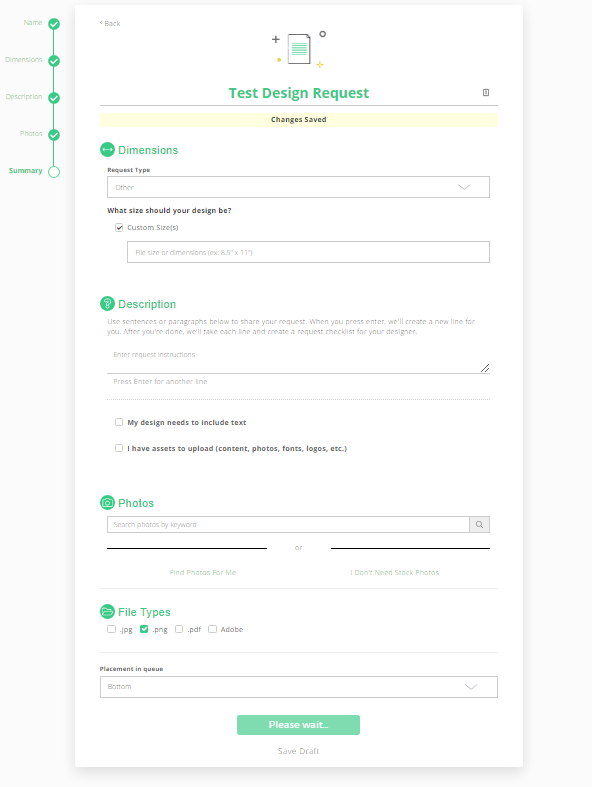
Submitting a Design Request

This is what the design request form looks like and it’s as simple as adding the dimensions of the assets that you want, a description of the deliverable, any source assets you want to reference and the file type that you would like the asset delivered in (Usually I get .png files and the source Adobe Illustrator files)

Getty Images Integration

One great option that the team at Design Pickle have added on to this service is an integration with Getty Images.

When you are submitting your design requests you’ll see the ‘Photos’ option which you can use to search for source assets for your designer to use.

I also find this a really useful place to find new ideas when I’m scrolling through the different images available and is a key part of my creative process.

Lets take the example below, where I’m doing a St Patricks Day design and have done a search for ‘leprechaun’ you’ll see that it brings a wide ragne of vectors that I can use for my design request:

Design Pickle Getty Integration

The one thing to note with this, however, is that although you are allowed to use these designs for commercial use the license is limited to a single use. That means you are allowed to use it only for this design concept, so you can’t take the source file and use it for other designs that you want to create, unless that is done as part of a separate design request.

Completed Design Requests

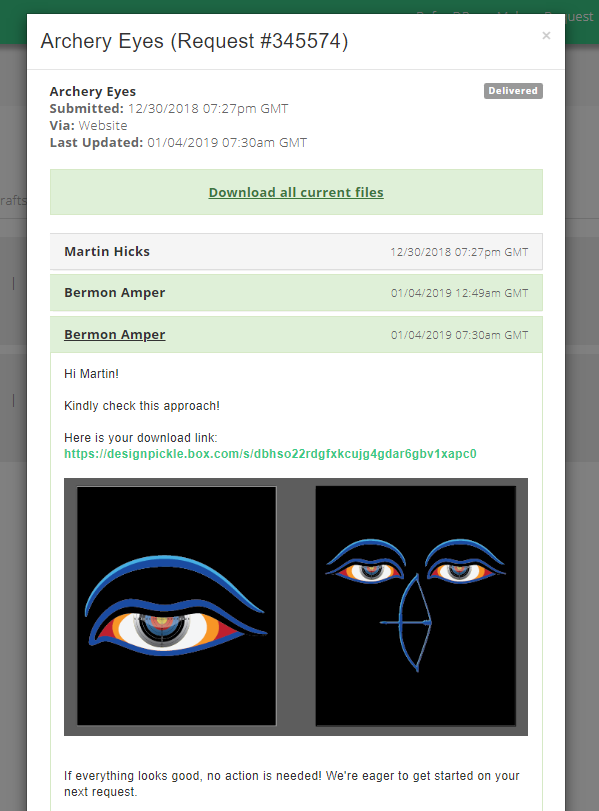
Each day your designer will work on the design requests at the top of their queue and when they have finished the request you’ll receive an email and a link to the files with any feedback from the designer which looks like this:

Design Pickle Completed Design Requests
A Completed Design Request

You can either submit feedback to your designer and ask them to make further tweaks and revisions or if you’re happy just download the final source files and give your designer the thumbs up or any feedback they should take into the next design request.

Allright, so that’s all pretty simple, right, so lets looks at the pros and cons of the Design Pickle Service.


Design Pickle’s Bad Points

Single Designer

Well, this is a weird one because it’s both a pro and a con of the Design Pickle service and that’s the fact that you are allocated a single designer on your account and that can have a massive impact on the quality of your deliverables.

If you end up with a designer that you don’t get on with, doesn’t quite understand your style or requirements or just simply isn’t good enough then you’re not going to receive the standard of work you’re looking for. 

The good thing with Design Pickle is if this does happen, then they will quite happily let you request to swap out your designer.

I’ve used Design Pickle for over 2 and a hald years and initially had an awesome designer who understood everything that I wanted and was a kick ass designer…. in fact he was so good that he got promoted into the illustrations department, which meant he left my account and was replaced by another designer who wasn’t up to scratch. 

I gave him a few months grace and then asked for him to be replaced and now I’ve got another kick ass designer instead!

No Custom Illustrations

Yes, unfortunately the designers are limited to manipulating images, adding text and creating their own versions of images and if you want custom illustrations done you’ll have to use their other services.

Occassionally I’ve snuck in a few simple illustrations to my designers but generally their line manager will stop these from going ahead.

Limited Getty License

As I mentioned before the Getty Image license is restricted to Single Use License, which means you can’t use this to create other designs from unless you send in another design request.

I think you can get away with scaling out the design to different niches, but that’s probably a bit of a grey area as well.

Design Pickle’s Good Points

Motivation

Because you’ve bought a subscription with Design Pickle this means that it;s up to you to make sure your designer has enough briefs to work through, otherwise you’re paying them to do nothing!

If you’re a tight ass like me then this keeps you super motivated to make sure they never get to a point where their queue is empty, which in turn means you’ve always got a steady stream of new designs for you to upload.

This was a massive factor in me being able to get up to Tier 8000 in Merch by Amazon relatively quickly and I now have over 4000 unique designs created.

Getty Integration Rocks

For me this is a killer feature as you have such a huge range of top quality vectors that you can choose from for pretty much any niche that it will really help your designs stand out from your competitors.

It’s also a way for you to get top level illustrations for really minimal prices… just search the image library, choose some awesome illustrations, add those to your design request, your designer makes a few amends then you have your own awesome graphic!

Relationship Building

Because you are allocated a single designer to your account it means that you get time to develop a working relationship with them.

If you give them constructive feedback on your design requests then it won’t be long before they really understand they style of design that you are looking for and will need less instruction on future design requests.

After a few months of working with my designers I could give them a very minimal design brief and usually they would hit the mark with it, which saves lots of time.

It’s also worth noting that their level of English is pretty good so mis-communication is not generally an issue.

Ok, so that’s my review of the  Design Pickle for you, so lets have a look at how much this is going to cost you…

How Much Does Design Pickle Cost?

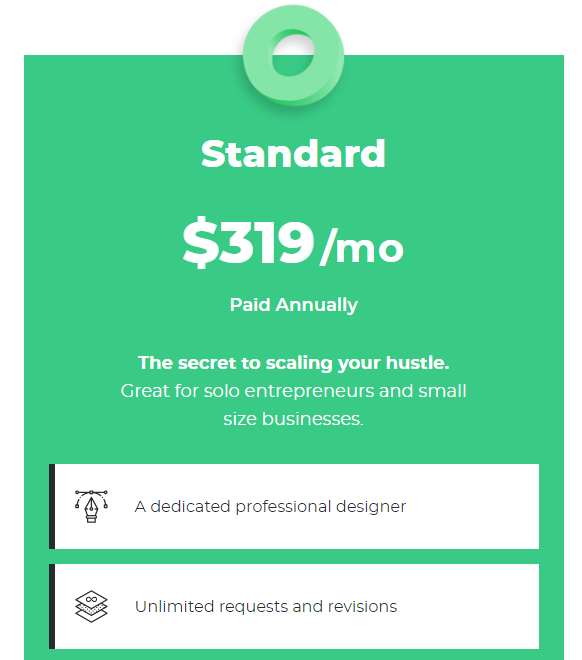
If you buy an annual subscription it works out at about $319 per month with another $25 on top for the Getty Image subscription.

Now, that might sound like a lot, however, lets break this down a little to see the true cost:

  • 21.62 = average number of working days per month
  • 4 Unique Designs per day minimum (2 design requests with 2 variations)
  • 83 Unique designs per month
  • $4.14 Cost per design (344/83)

If you take into consideration the fact that a lot of these designs can be scaled out into other niches as well, then your per design cost is really, really low.

To me it’s a no brainer, and will really help you grow your Print on Demand Business.

Design Pickle Review Summary

Like I say, I ‘ve been using this service for more that 2 years now and have for most of the time been extremely happy with the service.

For platforms such as Merch by Amazon I think Design Pickle is the perfect partner for creating low cost, good quality designs.

However, if you’re looking for top quality illustrations then I’d recommend a service like Penji instead of Design Pickle’s Illustration service (which I personally haven’t used yet).

Design Pickle Review Video

If you’d like to see Design Pickle in action, here’s a little video I put together of the platform:
Filed Under: Print on Demand Tagged With: print on demand

Merch By Amazon : Step by Step Process

13th January 2019 By martinos74 4 Comments

Merch By Amazon Process

I’ve been working fairly intensively on Merch By Amazon for just over 9 months and have finally managed to find a repeatable process that I can use to research, create and list unique designs on Amazon and across multiple Print on Demand Platforms.

Initially when I started I spent most of my time stressing whether I’d done something right, or wondering if I was wasting my time on certain designs as I had no real way of telling if a design would be able to sell or not.

However, with a few tricks and a few tools (Some free, some paid for) I think I now have a process that takes away a lot of the mystery and should be a fairly simple step by step process that you can follow to expand your design portfolio.

WARNING: This is a pretty long article so I’ve split it into 7 separate steps, each with a video showing you the exact process I follow for Merch by Amazon.

Step 1 – Finding a Niche with Low Competition and High Demand

This is probably one of the most important steps for you to master, especially when you are in the lower tiers as you really want to make sure that your designs have a decent chance of ranking.

Keyword Analysis

Merch Mine

For me the quickest way to do this is to use some software called Merch Mine.

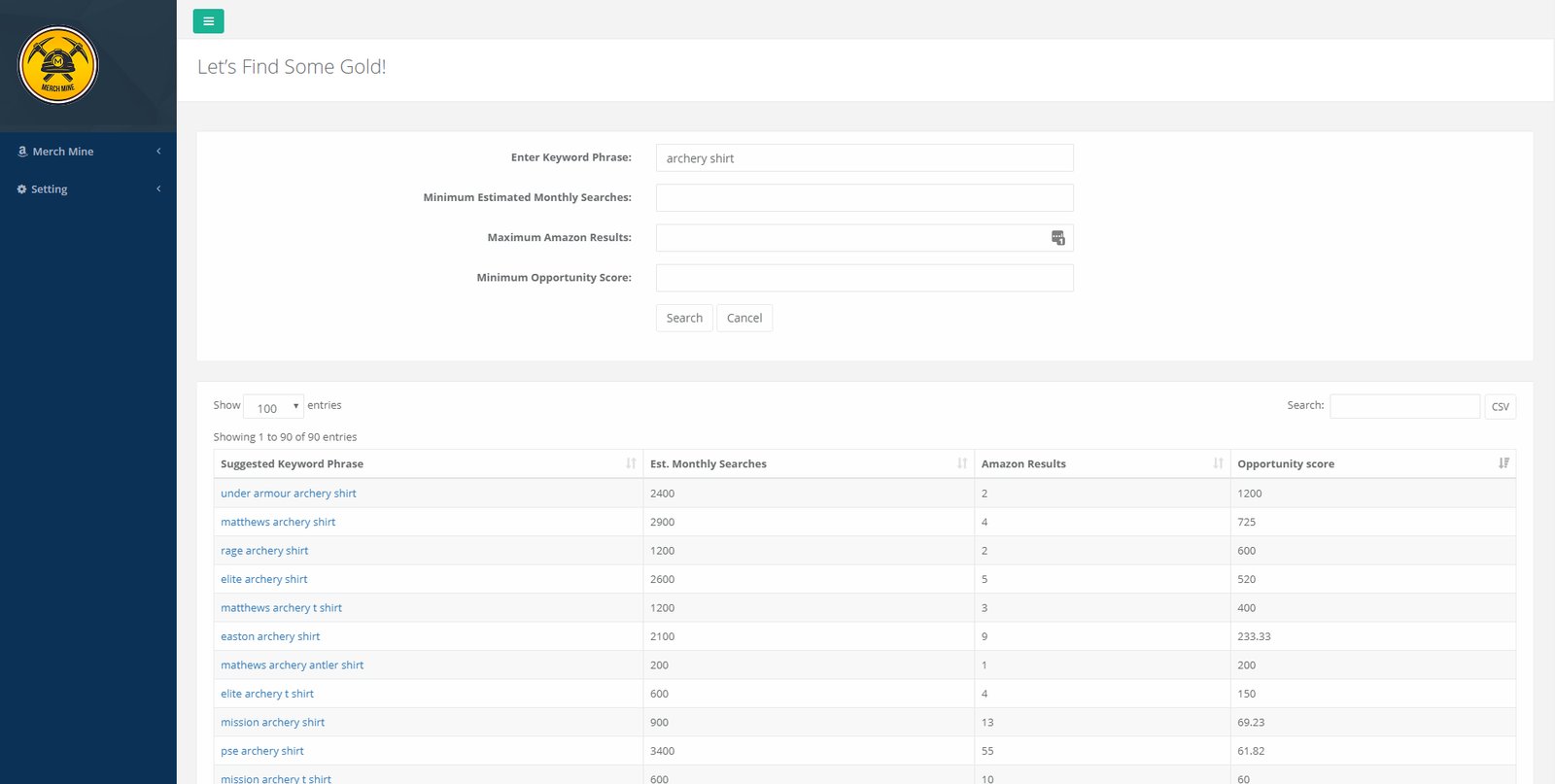
Simply put this allows you to add a seed keyword such as ‘Archery’ and it will return a list of similar keywords, with the following data as shown in the screenshot below:

  • Estimated Monthly Searches – This is based on data from Merchant Words, which an estimated average monthly search volume. This doesn’t come from Amazon itself but is a good approximation. Read exactly how they calculate it here
  • Amazon Results: Shows you the number of results that are presented in Amazon when you enter the given keyword
  • Opportunity Score: Is a simple calculation of the 2 previous metrics to give you a number that you can glance at quickly to determine if the keyword is worth going for or not:
Merchmine Search Results

TIP: To ensure that you get a decent set of search results back I usually add the following values to pre-filter the search:

  • Estimated Monthly Searches – 800 (Ensures that there is enough volume)
  • Amazon Results: 400 (Ensures that the niche isn’t flooded yet and you could still rank with this number of shirts)
  • Opportunity Score : 5

EXAMPLE : From the seed keyword of ‘archery shirt’ I found the keyword ‘Traditional Archery Shirt’ with the following stats, which look good to me:

  • Estimated Monthly Searches – 1200
  • Amazon Results: 144
  • Opportunity Score : 8.33

Analysing Search Results in Amazon

The next thing you’ll need to do is make sure you have 2 Chrome extensions enabled:

DS Amazon Quick View

DS Amazon Quick View Extension
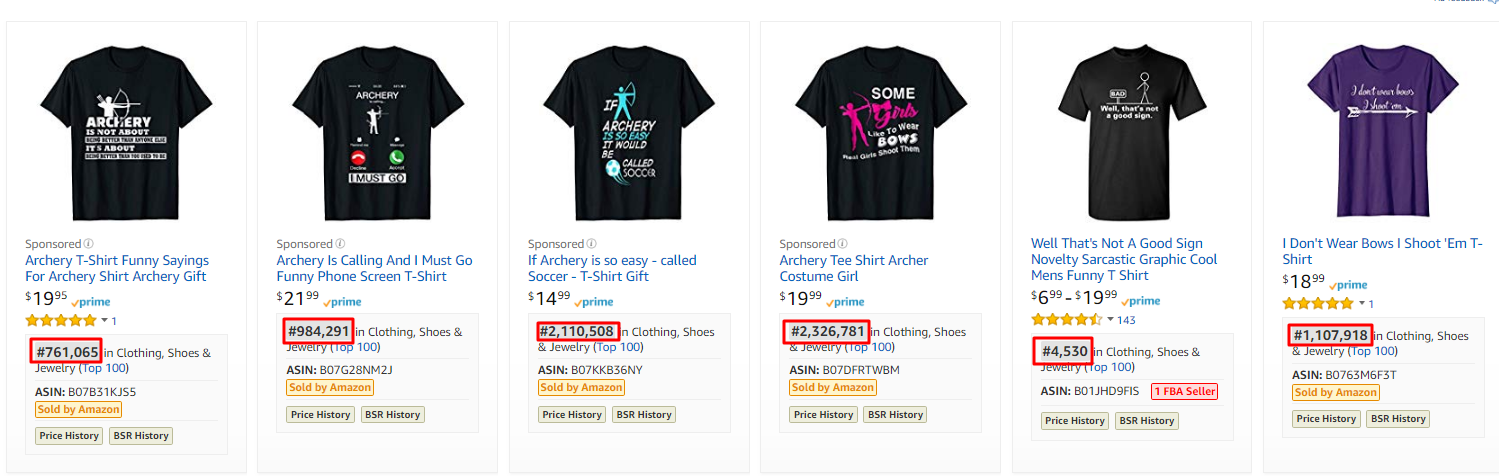
BSRs Highlighted with the DS Amazon Quick View Plugin

This is an essential plugin to use and will quickly help you determine whether any of the shirts on that page are selling or not.

Typically a BSR of 100,000 means that the product is selling once per day. A lot of people will only go after keywords where shirts have a BSR of less than 500,000 but my personal approach is to go for anything that shows some track record of sales.

My strategy:
If there are a few shirts with high BSRs then it’s still worth going for and my strategy is to have thousands of shirts selling once or twice a month rather than one shirt which sells a heap…. the main reason for this is that I won’t get the attention of the cheap scumbag copycats, who will just steal your best selling shirt design and sell it at a lower price. My experience so far shows that as soon as you get anywhere near to a BSR of 500,000 you are likely to have someone copying your shirt pixel for pixel.

Keepa

Keepa - Chrome Extension
Keepa Amazon Price Tracker Extension

To get an even more accurate picture of how well a particular shirt is selling you’ll need to install the Keepa Chrome extension which is also free. It’s a little bit glitchy but for most products will show you a graph of the history of the BSR for that product.

This means that when there is a jump vertically down in the graph, a sale was made. As you can see in the image above the red spots I’ve highlighted are where this particular product made a sale and is a great way to determine demand in the marketplace.

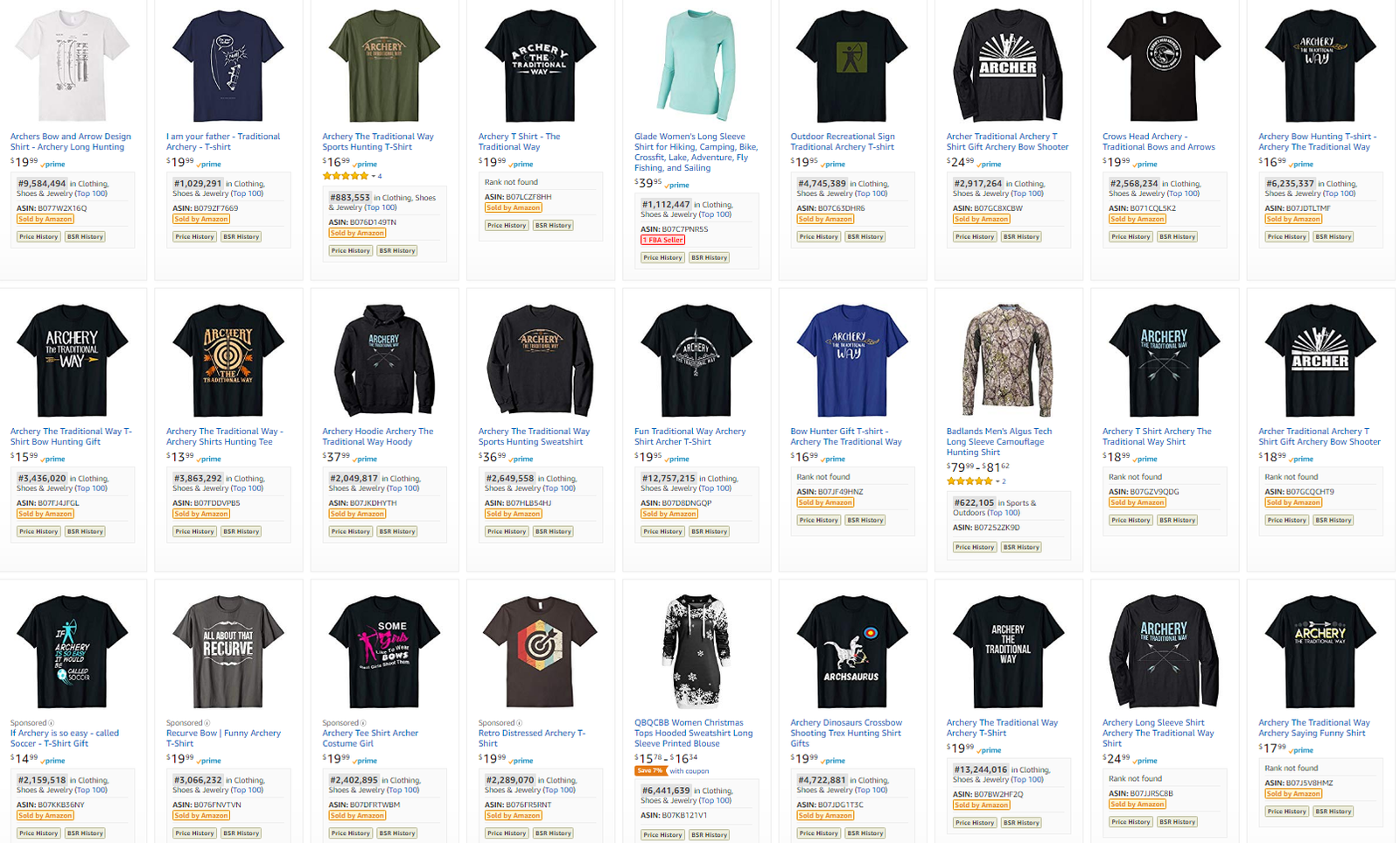
EXAMPLE: If you do a search for ‘Traditional Archery Shirt‘ in Google you’ll see a page of results as below.

Notice the key thing here is that there are lots of products with BSRs that range from 500,000 to 3 million.

This means that the products aren’t selling in massive numbers, however, there is definitely a demand that is worth us looking into.

Traditional Archery Amazon Results
Traditional Archery’ Search Results with BSRs

Step 2 – Brainstorming Ideas in the Niche

So we’ve found a niche that looks promising, but we probably know nothing about that niche, so how can you come up with a design that is relevant to the audience and will ultimately make them want to purchase your shirt?

Well here’s 3 tips that I always use to brainstorm my ideas:

Search Google for Memes

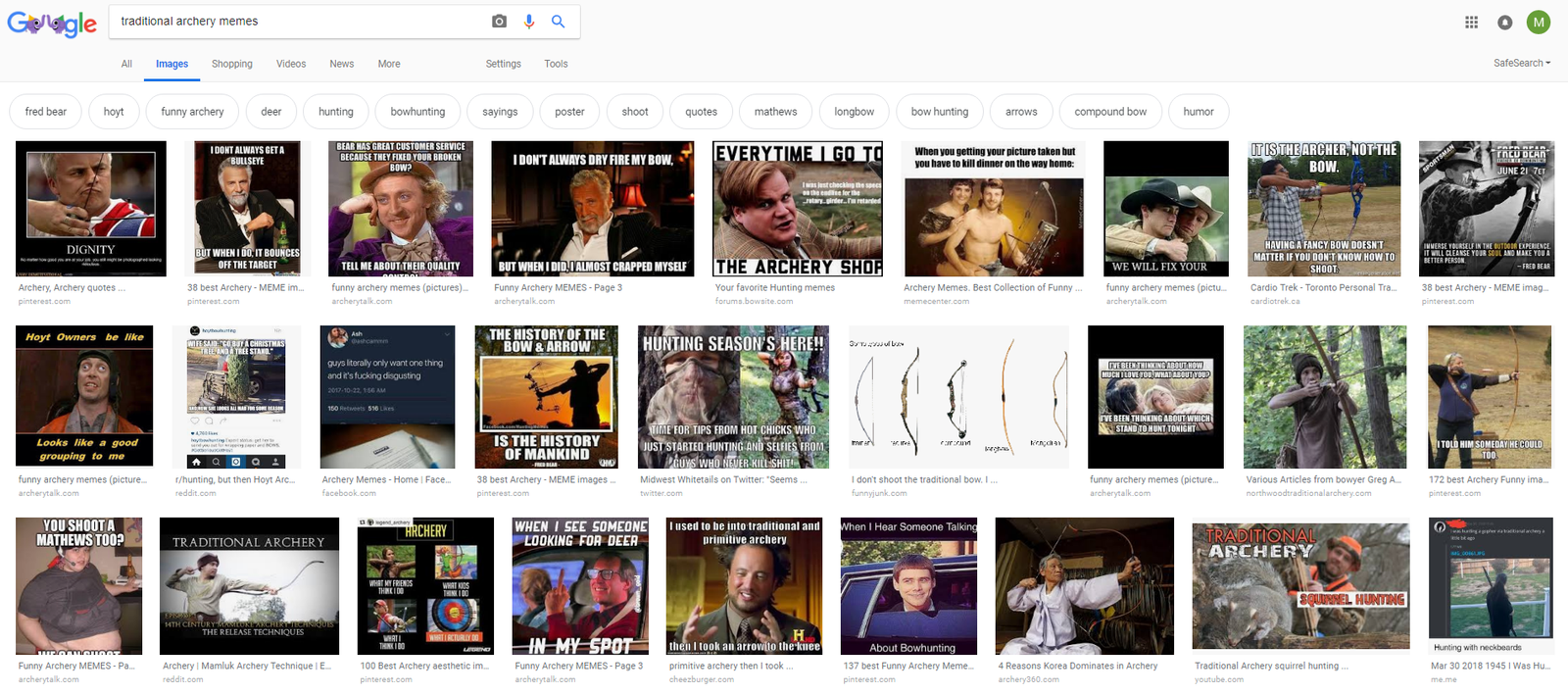
Traditional Archery Memes
Google Meme Search Results

The first thing I’ll do is goto Google and do a search for memes. A lot of these will be trash and unusable but you will always find a few gems that you can use for your Tshirt ideas.

The things that you are looking for in a meme are:

  • Text is short and punchy enough to fit onto a Tshirt
  • The concept can be translated easily onto a Tshirt
  • The concept is unique to your niche, or references niche specific terminology

Scan through all of the images that are shown and take screenshots of the images so that you can review later.

The good thing about this approach is most of these memes will have been created by people who have inside knowledge of the niche, which takes a lot of the research load off of your back!!!

Search Pinterest

Traditional Archery Pinterest Board
Pinterest Search Results

Pinterest is another goldmine of ideas that you can use for your shirts. This is perhaps even better than the Google search because a lot of these boards would have been specifically curated by enthusiasts in the niche that you are trying to enter.

Just enter your search term and either search for specific boards related to the niche or just browse the hundreds of images that appear and screenshot any ideas you like for later.

Search for Jokes / Sayings

From my experience so far it’s pretty clear that the best selling shirts are ones that have a touch of humour or have a cool saying that is relevant to the niche that you are targetting.

Put yourself in the mind of the buyer and why they are buying the shirt. Most of the time what they are actually doing is saying to the rest of the world “Hey, I’m really interested in this niche and want you know that I am because I think it makes me look cool/interesting/exciting/intelligent“

I’ll always do a quick search in google for funny sayings / jokes and scan some of the forums in the niche, as they will usually have a funny jokes section as well.

This gives you great inside information from what people in the niche are actually finding funny…. which should translate to sales!

Again, remember that the jokes need to be pretty short and punchy where possible and be able to translate well to a Tshirt, so that other people will be able to read the pun and get the joke instantly.

EXAMPLE: You should now have created a single document that has collated all of your ideas from the sources mentioned above.

Here’s what mine looks like for Traditional Archery:

Traditional-Archery-Ideas-Sheet
My Traditional Archery Ideas Sheet

Step 3 – Creating your Design Briefs

So now that we’ve done a lot of research and got a good feel for the niche, we need to break some of these ideas down into actionable briefs that we can give to our designers or to work on ourselves.

The key here is not to copy the source designs but use them as inspiration to create your own unique or improved version, because these will likely sell more easily and you don’t want to become one of those copycat scumbags do you???

Check Amazon for Existing Designs

The first thing I always do is go to Amazon and search for the exact phrase to see if there is someone else who has already created designs with this phrase / theme.

You want to save yourself time and money and not create something that exists already.

EXAMPLE: From the options that I selected I did a quick search on the following phrase ‘My Idea of Group Therapy Shirt’ and found that 24 designs already exist for this phrase and none of them are selling particularly well, so there’s no point in going for this one:

Group Therapy Search Results

Check for Trademarks

The next thing you want to do is to a quick check of the phrases on your shortlist of designs in case there are any trademarks.

I always put the terms and variants into http://tmhunt.com . We’ll do another Trademark search later on but it’s worth checking your main phrases at this stage.

Finalise Your Ideas

Now we need to take these basic ideas that we have and turn them into actionable pieces that a designer can create a design from.

This next phase is probably the most difficult phase and is something that is difficult to teach and is more of a skill that you acquire after creating numerous Tshirt designs.

However, there are some pointers that may help you:

  • Keep Phrases short and sweet so they can be seen from a thumbnail
  • If you are creating a text based design try to interlace the text with assets related to the niche. For example, swap out some of the letters with iconography from the niche or add a flourish that includes a niche related graphic.
  • Don’t overcomplicate the design … try to base it on one simple concept that is instantly recognizable
  • Think about the font that you want on the design. Some niches will naturally have a certain style and fonts that work eg Gothic, sports, kids niches all have different fonts that would work well for them
  • Think about the person buying the design and the message they would like to portray by wearing your Tshirt on their chest

Submitting Your Design Brief

If you create your designs yourself then you don’t need to worry about this stage too much, but a lot of you will need to outsource work to designers (especially if you wish to scale your business) so creating a clear brief is a very important step and will save you time in the long run with less revisions the clearer you are up front.

Some tips from me to creating your brief:

  • Use plain/simple English to explain your concept as often your designer will not be a native English speaker
  • Provide examples of styles that you like – give as many screenshots and references to other pieces of work / Tshirt designs that you have seen and be clear what you like/dislike about them
  • Ask for a couple of options. It’s always going to be difficult for a designer to get the brief right every time so give them a couple of ideas to try out
  • Be prescriptive and clear about what you want. If you want them to create a design with a car then tell them what kind of car you want, what colour and which angle the car should be at

EXAMPLE: From the research we did previously I have created 4 final ideas that I will send to my designer in the next step, which you can view here

Design Pickle

Design Pickle Submit a Design
Design Pickle – Submit a Design Form

In the video you see that I am using a service called Design Pickle. This is a paid service that you can pay for on a monthly basis.

The general idea is that you can submit as many designs and revisions as your designer can get through in the time that they have allocated to them…. another good reason to make sure you have clear briefs!!!

You will be allocated a designer who will stay on your account, which is a great thing because after a while they really get to understand what you like stlyewise.

Typically a designer will get through 2 design briefs a day, which will include 2 – 3 variations and the revisions that you submit. However, if you ask them to create a really complex design then this will a bit longer!

For me the massive benefit for using Design Pickle is that this also gives you access to Getty Images for use on your Tshirts with a commercial use license, which only costs you $25 a month….. that’s a bargain in anyone’s books!!!

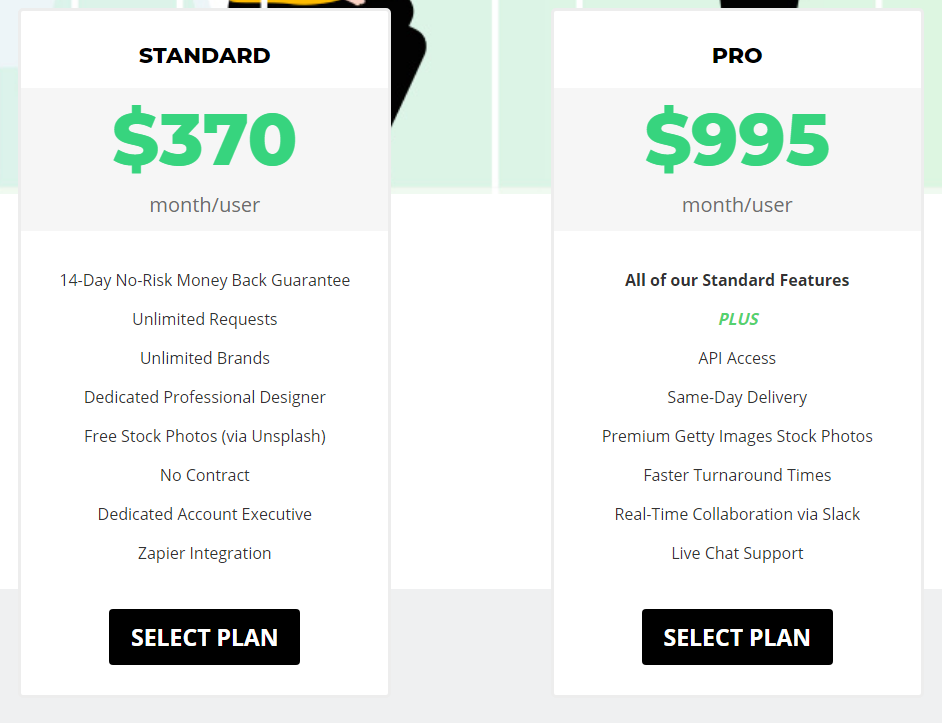
Design Pickle Pricing Plans

I bought an annual plan so it works out even cheaper than this but even for $370 a month you can break this down as follows:

  • 21.62 = average number of working days per month
  • 4 Unique Designs per day minimum (2 design requests with 2 variations)
  • 83 Unique designs per month
  • $4.45 Cost per design (370/83)

Upwork

Another good source for finding a designer is upwork.com where there are plenty of good designers available.

Simply add a job description and a price per design and you should get a number of replies back.

I posted the following job for $5 per design and managed to find 3 designers out of this:

I’m looking for a designer to work with me to build up my stock of designs for various print on demand services.

Will pay $5 per Tshirt
You must supply all layered files
You must own the rights to all fonts and imagery used
Designs must be unique for my use only

Please send examples of your work and you must be willing to submit a test design based on my criteria I submit.

Likely to be a longer term engagement for successful candidates

The main thing is that you will need to spend time going through the different applications until you can find a decent designer.

The downside to using Upwork however, is that your designers won’t have access to a lot of the source assets that you can get from Design Pickle and it’s harder to know that the designs they are creating for you are unique.

Step 4 – Writing your Product Listings

I’ve now got the finalised designs back from my designer and am ready to move ahead and create my product listing by performing keyword research and creating a product that stands out to potential customers.

This step is another extremely important step, because if you don’t write your listings correctly, no one is going to find your beautiful designs, which means less money in your piggy bank!!!

2 schools of thought…

There are lots of different schools of thought about the best way to write a product listing so that Amazon’s search algorithm will rank your product as highly as possible.

Some people are very minimalist with their keyword approach and will choose only a couple of keywords which they repeat in the title and bullet points. Their idea is that the fewer keywords you use, the more targetted the listings will be and the more search weight Amazon will give to the individual keywords you are targetting.

Other people try to cast their net as wide as possible and sneak in as many relevant keywords into their listings as they can, without making the listing look like it is spammy or untrustworthy.

Personally I lean towards the second approach slightly more but see which approach works best for you and most importantly, try out both approaches on different listings.

Anyway, I’ve found an approach that works for me and now have a series of repeatable steps that I go through as I build up my product listings:

Keyword Harvesting

The first thing that I do is open up a notepad file and start collecting as many relevant keywords that I can find that are related to the main keyword I am looking for.

The main thing to note here is the word ‘relevant’ because for each keyword you add, you need to think whether someone who uses that keyword in their search term would actually want to buy the T-Shirt that you are selling.

To help me create my list of keywords I use 3 sources:

  • Google
  • relatedwords.org
  • merchinformer.com

Google

Traditional Archery Google Search Results

Take your seed keyword eg ‘Traditional Archery’ and search for this in Google. Usually I just spend a couple of minutes scanning the page to pick out some of the main related keywords.

As you can see from the screenshot, the google snippet on the right is usually full of relevant keywords, but it’s also worth clicking into a few of the top results to see what you else you can find.

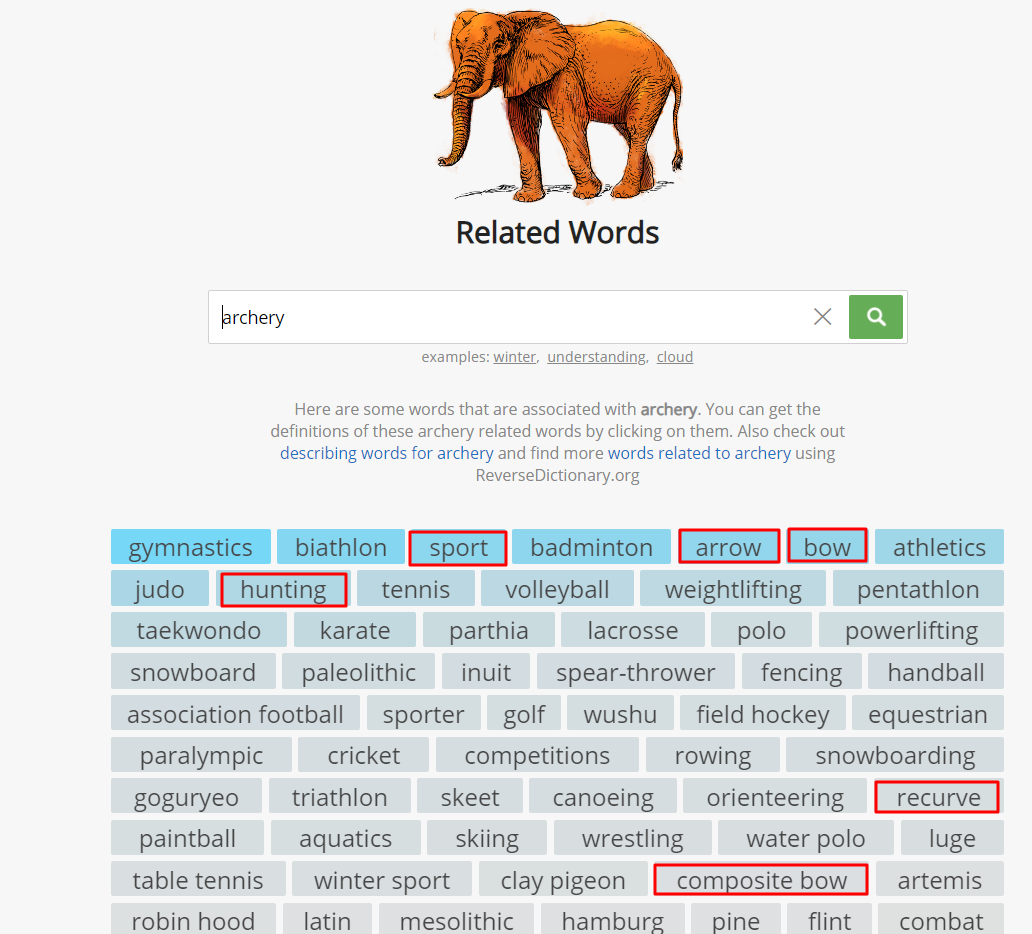
Relatedwords.org

Relatedwords.org Search Results

The relatedwords.org website is pretty much an online Thesaurus that allows you to enter search terms and will bring back a range of associated terms.

The results are a bit hit and miss, however, you will often find keywords in this list that you won’t come across in other searches.

Merch Informer – Product Search

Next you should hop on over to merchinformer.com and click on the ‘Product Search’ tab.

Enter your seed keyword and select ‘Search in title only’ and you’ll see a set of results like this:

Merchinformer - Keywords
Merchinformer – Keywords

What this shows us is a list of the most common keywords that people have used in their listings that are returned based on your seed keyword. Scan through this list and pick out keywords that you think will be relevant to your listings.

It’s also worth reading through the bullets and descriptions of some of the top selling shirts in the niche as well to give you some more ideas for writing your own listing later.

EXAMPLE: At the end of this process I now created the following list of keywords that I can use in my listing:

archers, archery, bowman, hunter, oldschool, oldfashioned, toxophilite, bowhunting, arrows, bullseye, target, longbow, recurve, simple, bow, hunting, sport, gift, practice, range

Writing your Listing

Now that you have all of your keywords prepared you just need to add these into a coherent product listing.

I keep all of my product listings in an excel sheet, which could become more difficult to manage over time, however, is my preferred tool at the moment.

I’ve created a file with some simple formulas to help you speed up the product listing process which you can download below:

Listings-Creation-WizardDownload

To use this file simply fill in the following fields:

  • T-Shirt Text – Any text you’ve used on the actual shirt
  • Keyword – Your main keyword
  • Person – Who you think would buy the shirt
  • Where – Where the person is likely to wear this shirt
  • Brand – Use the main keyword and 1 or 2 related keywords
  • Title – Use the main keyword + “Gift” for the person who is buying the shirt
  • Bullets 1 / 2 – The file will generate most of the sentence for you, but you should insert extra keywords from your list into these slots to make them read as clearly and as naturally as possible.

EXAMPLE:  From the Traditional Archery designs I now have listings ready to add into Merch by Amazon that look like this:

Brand – Traditional Archery Bows and Arrows Tees
Title – Traditional Archery T-Shirt : Gift for Archers, Hunters and Bowman
Bullet 1 – This cool Traditional Archery T-Shirt is a great gift for an Archer or Bowman to wear to the Range and will look great when you are shooting a few arrows at the bullseye target with your favorite bow!
Bullet 2 – This cool tee features an image of a damaged arrow and a cool, vintage font saying “It’s just a fletch wound”, which every oldschool toxophilite bowman will be proud to wear to the next bowhunting competition.
Description – This cool Traditional Archery T-Shirt is a great gift for an Archer or Bowman to wear to the Range and will look great when you are shooting a few arrows at the bullseye target with your favorite bow!
This cool tee features an image of a damaged arrow and a cool, vintage font saying It’s just a fletch wound which every oldschool toxophilite bowman will be proud to wear to the next bowhunting competition.
This cool and fun Tshirt is sure to make your family, friends or colleagues smile from ear to ear! No longer be stuck searching for a souvenir birthday present for your Girlfriend, Boyfriend, Mum, Dad, Son and Daughter with this unique gift!
The best gifts are both personal and functional, and that is why this Humorous Tee is a fantastic choice.

To be honest the description is a bit over the top but it’s not used as part of the Amazon search algorithm. The main purpose of the description is to help with Google search, and also to give buyers confidence in your listing.

Step 5 – Uploading to Merch

OK, so the good news is that we’ve done most of the hard work now, or at least the majority of the work that involves thinking.

This next phase is the monotonous process of uploading your finished designs and listings into Merch, so I suggest you go and get some decent toooones to listen to as you hammer through the upload process.

To help us with the upload process there are a couple of tools that will speed things along a little.

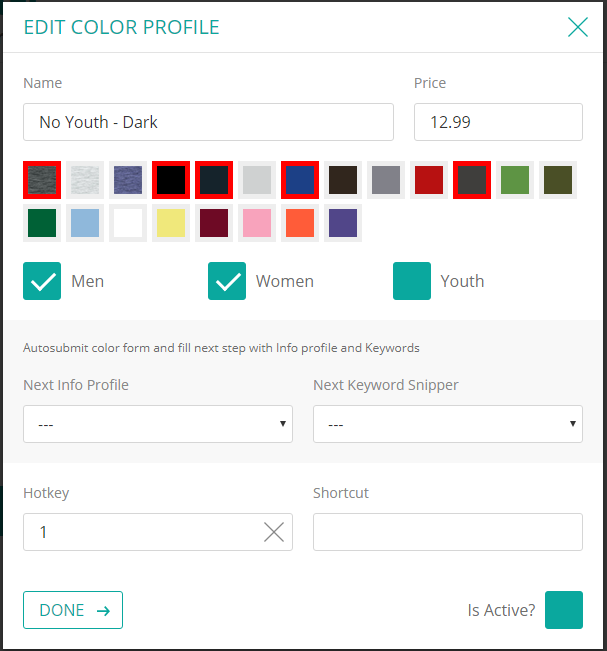
Colour Profiles

Choosing the colour that you want to upload your Tshirt for and whether the shirt is for men, women and youth sizes can become a bit irritating if you have to do this repeatedly, but luckily there are a couple of extensions that you can get which condenses this process into the click of one button:

Merchlister Pro

This is a neat Chrome Extension that you can download from here for a cost of about £6/$10 per month.

This extension becomes really useful if you have lots of designs in a similar niche with similar listings, so rather than copy/pasting everything you can just press one hotkey and it will populate the listing for you.

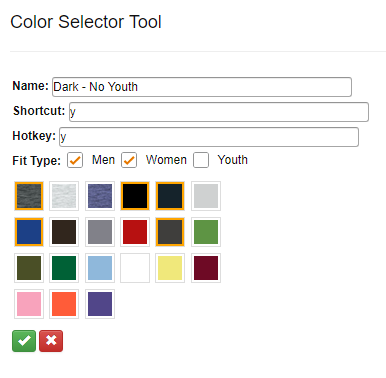
One of the other features is the color selector tool as shown below, which allows you to select the colors you want for your designs and set these up with one click.

Merchinformer Lister

This extension comes free with the merchinformer.com subscription and does a lot of the same things that Merchlister Pro does:

Upload in Bulk

To make the most of my time I make sure that I always do a big batch of uploads rather than doing them one at a time.

I find it easiest to open up 10 tabs at a time then copy/paste my title, bullets and descriptions from the spreadsheet we prepared earlier. You’ll be suprised how quickly you can do this after a bit of practice.

Final Check for Trademarks

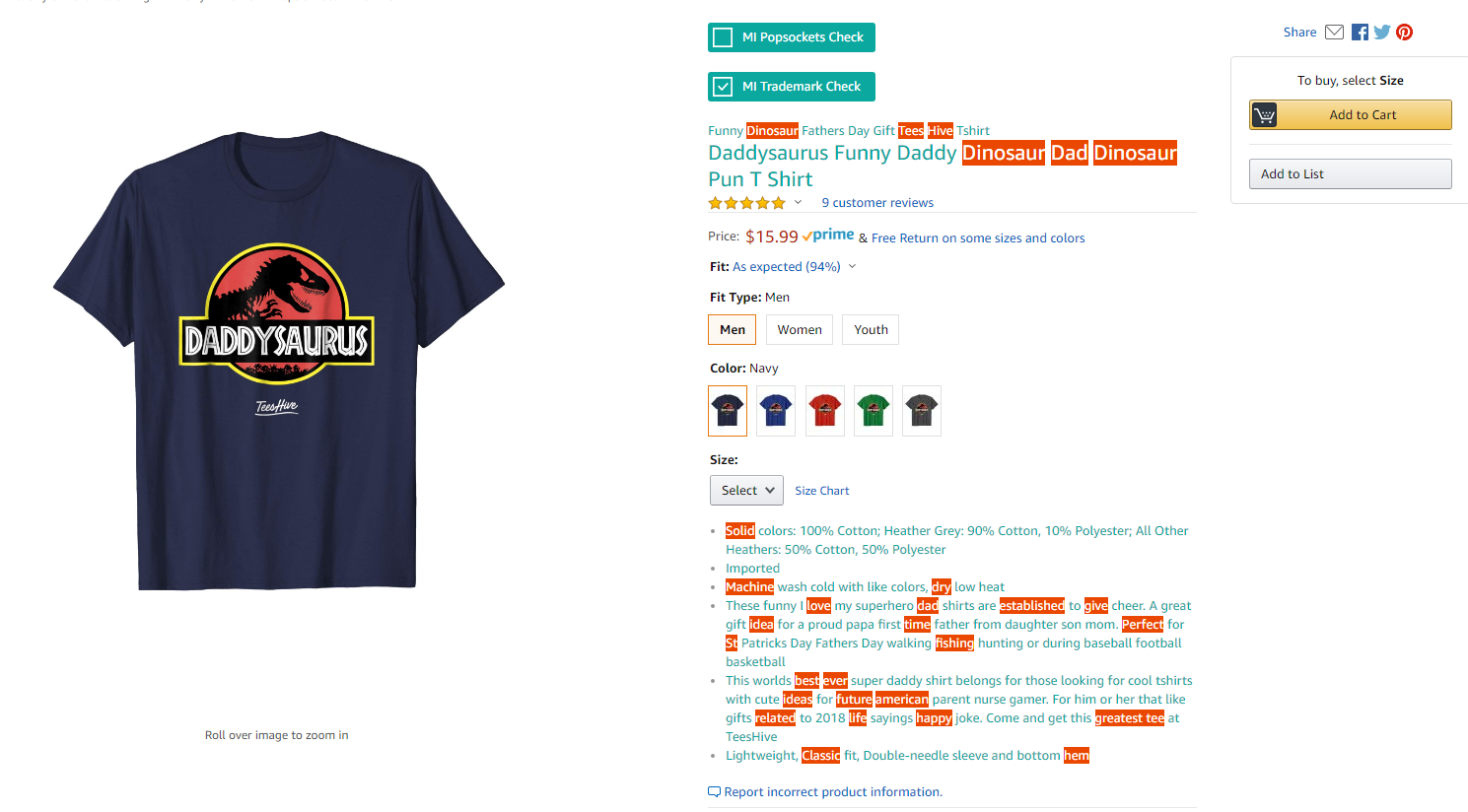
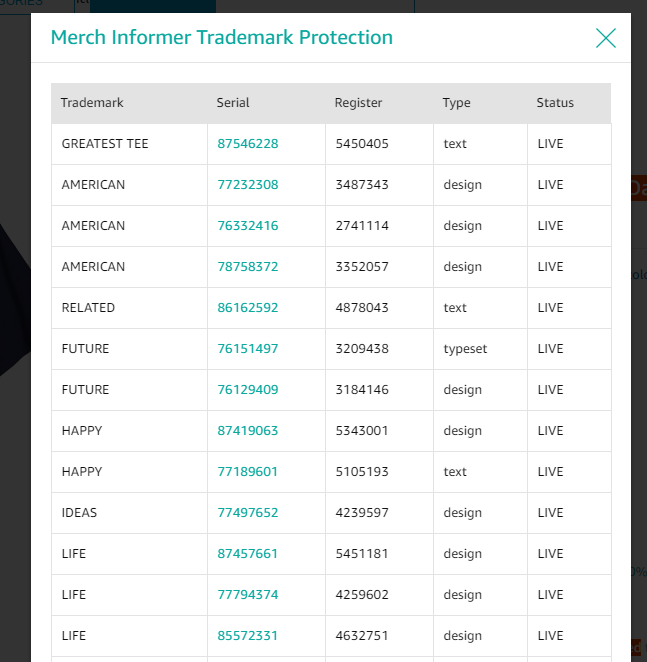
The final step before pushing your listing live is to check whether any trademarks have slipped into your listings and again this is another great tool that merchinformer.com gives you:

Merchinformer Trademark Search

This shows you any words / phrases within your listing that are currently trademarked and if you click on the words, it will take you through to a page with more details on the trademarks and links through to the USPTO website

Step 6 – Setting up Your AMS Advertising Campaigns

So you thought you’d done all the hard work and could kick back and relax now that you’d uploaded your designs to Merch… well you’re wrong.

Even though you have well researched, well designed ideas, you want to make sure you give your shirts a bit of a foot up and help them to get the BSR as soon as possible to give them the maximum chance of selling on multiple occassions.

This step is completely optional and is something that you should only do if you have a little bit of extra cash to spare, because you can easily burn a lot of money if you haven’t properly optimised your ads.

If you haven’t signed up for AMS yet, then look on the bottom of your dashboard and you should see this kind of message, with a code and instructions on how to set up your account.

The AMS Dashboard

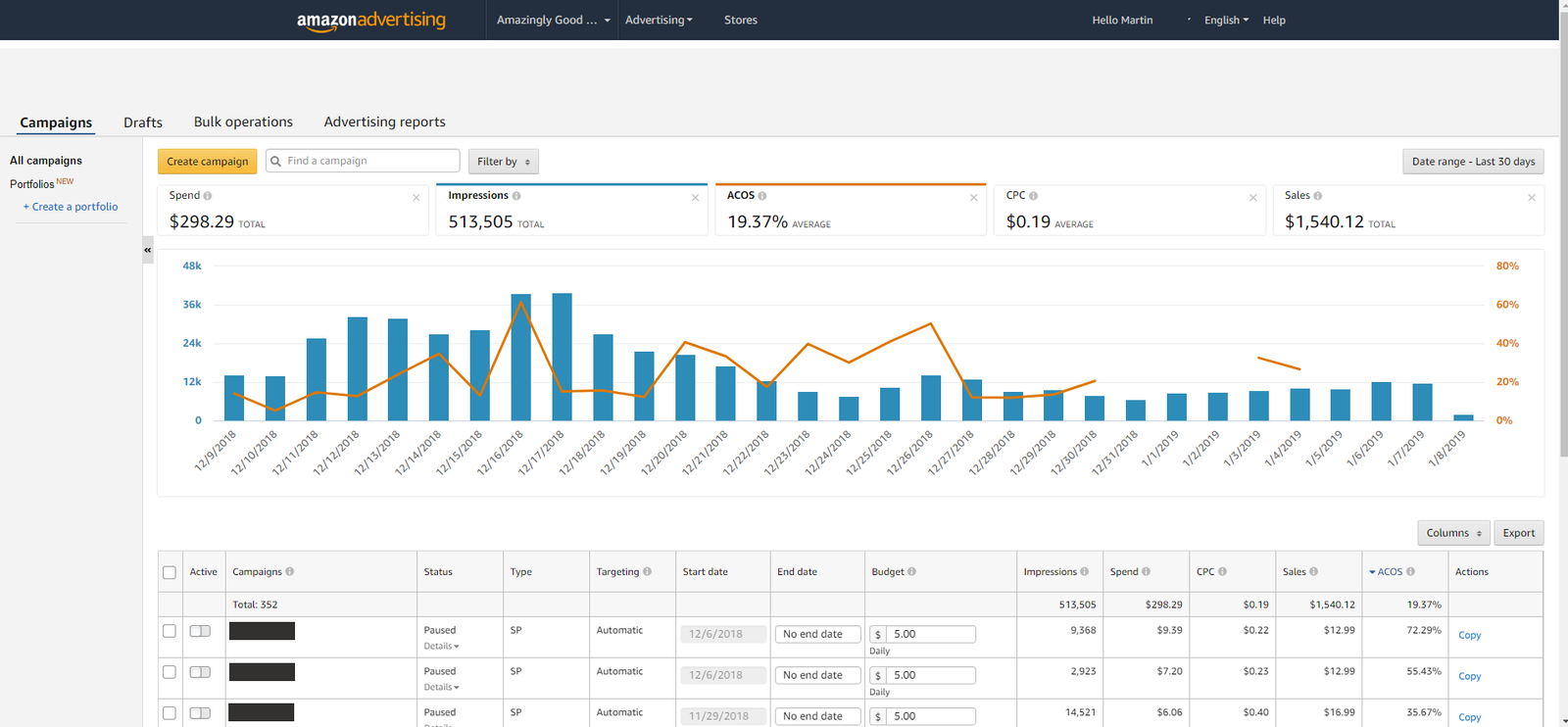
If you do have an account then when you login you should see something like this:

AMS Amazon Advertising Dashboard

This dashboard gives you a snap shot of you total account statistics over a certain date range as well as stats for your individual campaigns, including:

  • Spend – Total amount you have spent on the ads
  • Impressions – the number of times that you ad has been shown when someone performed a search
  • ACOS (Advertising Cost of Sales) – This is the most important figure which basically shows your advertising spend to sale ratio. You want this figure to be as low as possible and ideally under 10%. Anything over 20% realistically means you won’t be making much profit if any even if you are selling shirts.
  • CPC (Cost Per Click) – This shows the average amount you are charged each time someone clicks on your ad

Creating a Sponsored Product Campaign

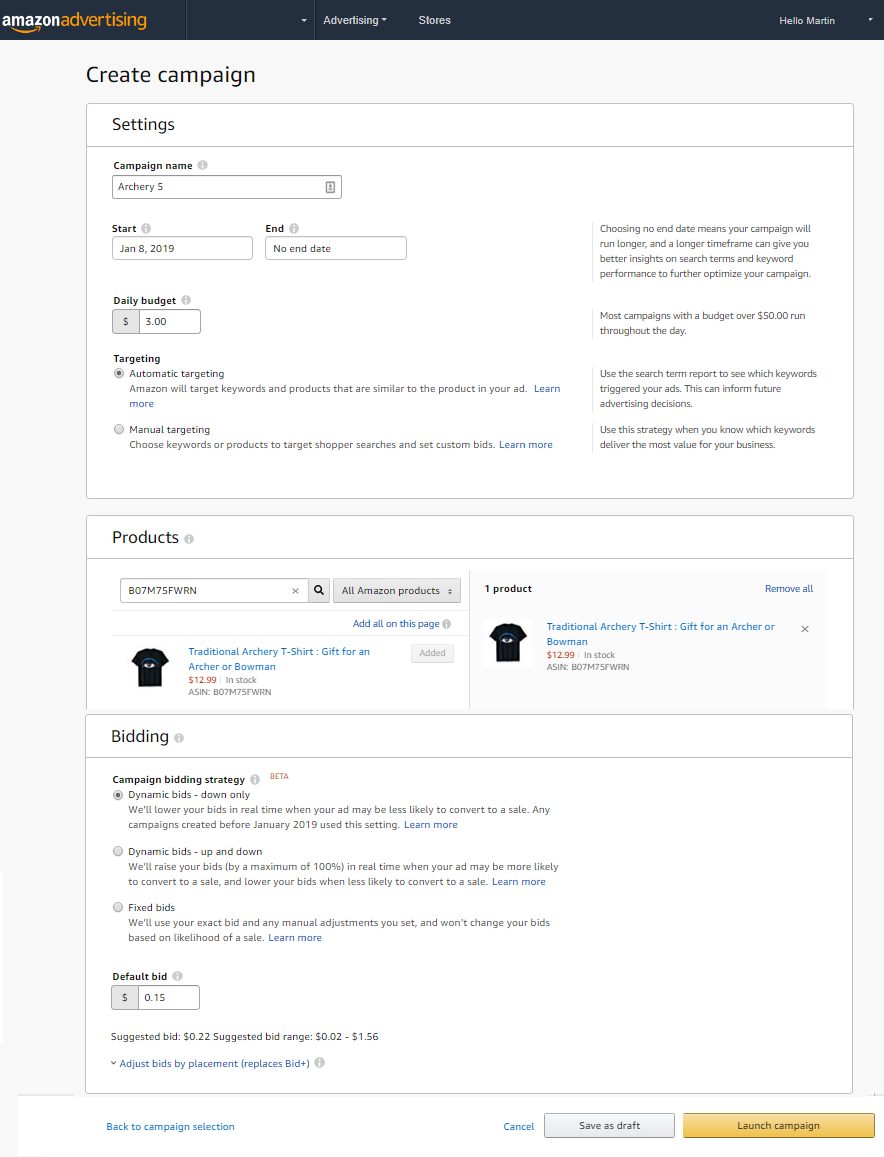
Setting up a campaign is really simple, you’ll want to click on ‘Create Campaign’ then select ‘Sponsored Product’ and you’ll see this interface:

Creating a Sponsored Product Campaign

You’ll want to add the following:

Campaign Name – Make this something that will be easy for you to search for and identify because you could have hundreds of these campaigns running in the future… I just use the file name

Daily Budget – I always set this to $3 but this rarely gets reached

Targeting – You should always start this on automatic and it will show your product ad based on searches related to your keywords in the title and bullets of your listing. After time you can then goto the Advertising Reports section to see which keywords are most successful in selling your shirt, and can go back to change the campaign type to manual

You’ll then need to search for your shirt(s) and add this to the listing. I usually only add one shirt per ad that I am running, or if I have 2 variations of the same shirt, sometimes I will group these together…. just because it’s easier to review reports later on if you have these ads separated out.

Bid – Set this to ‘Dynamic Bids – Down Only’ and unless you have huge amounts of cash to risk then I’d typically only set your bid at between $0.15 and $0.35

Monitor Your Campaigns

The most important thing to do once you’ve set your campaign up is to make sure that you go back and review its performance a week later and then continually monitor your ads.

You need to make sure that you switch off underperforming ads and invest more in ads that are performing well.

I’m still new to AMS and it is a whole new thing to learn, review and tweak your strategy on, but in my opinion you should definitely utilise this where possible to help your shirts to get BSRs and ultimately to grow your account.

Step 7 – Going Multipod with Orbitkit

OK, so this is the final step, I really, really promise you!!!

Lets say you’re at T500 and you have 1000 designs locked and loaded and ready to go, well it can be quite frustrating that you’ve got nowhere to upload those designs to because of the Tier limit that Merch imposes.

The good news is that there is actually life after Merch and in fact there are tens of other Print on Demand Platforms that you can use (mostly for free) to market your designs.

The bad news is that uploading your designs individually to each new platform is a major pain in the ass and drain on your time. Additionally, these other platforms won’t have the same amount of traffic as Amazon does, so it’s going to be hard to get much money out of the input you put into it.

Really depressing eh????

Well, no actually, because there is some more GOOD NEWS and a service designed with this particular product in mind called Orbitkit

What is Orbitkit?

Orbitkit is basically a great piece of software that allows you to upload your Merch by Amazon 4500 x 5400 px png files into a central location, which will then publish this onto multiple print on demand platforms at the click of a button including:

  • Redbubble
  • Spreadshirt North America
  • Spreadshirt Europe
  • Zazzle
  • CafePress
  • Society6
  • Inktale
  • Fine Art America
  • Teespring

It sounds like the Orbitkit team plan to keep adding to the list of integrations as well so this list should just expand over time.

How Does Orbitkit Work?

Orbitkit Design Interface

Simply upload your designs into Orbitkit and for each design you’ll need to add:

  • Title
  • Description
  • Tags

You will have all of these items from spreadsheet we created earlier with you Merch designs so you just copy these over onto your Orbitkit listing.

Creating Blueprints

For each POD Platform that you register for, you will need to create a blueprint to use with Orbitkit

This sounds a lot more complicated than it actually is, but all you are doing is adding a sample design into the POD Platform and configuring it for all the different products you want to sell.

You only do this activity once, because it is then imported into Orbitkit and when you upload a new design you can select which Blueprints you want to publish your design to.

As you can see from my dashboard below this means that you can publish you designs at the click of a button to multiple PODS without too much hassle and means that you now have your designs on thousands of different products from yoga mats, to mugs, leggings, wall hangings and even fine canvas art!

My Orbitkit Dashboard

What Does Orbitkit Cost?

The GREAT NEWS is that if you sign up using this link then you’ll get the first month for only $5 which is a MASSIVE BARGAIN!!!

There are now a couple of pricing plans available for Orbitkit which you can see in the screenshot below:

Orbitkit Pricing
Orbitkit Pricing

Whilst it isn’t the cheapest kit in the world, I think it is still a good investment for your Print on Demand Portfolio as it means you are exposing your designs in as many marketplaces as possible.

If we do the maths, then for a 2 month subscription at a cost of $190 you will be able to upload 1200 designs to 9 different platforms, and then if you like you can terminate you subscription until you have the next batch of designs ready.

Personally I think it’s a no-brainer because you will make that money back in sales over the duration of a few months anyway. The other options are to do this yourself (in which case your brain would be so frozen over with boredom that you’d want to rethink your whole life) or you’d have to hire a VA to do this (which would cost more money and impose an existential crisis for your VA instead).

Step 8 – Drink a Large Glass of Wine

There’s probably more things that you could be doing after this, but if you’ve managed to get this far and if you are actually still reading then I salute you, and you really should go and pour yourself a large glass of wine or whatever your favourite tipple might be right now.

Just to say that this is my process only and there are definitely better ways to do things and things that I’m probably doing wrong as well.

However, for me, especially when I started Merch the amount of information out there was overwhelming and I just got distracted every time I tried to do something, so having a repeatable process to follow was essential to me and has really helped me grow my account.

Have Your Say

If you have any tips on how I can improve this process, things you would do differently, mistakes you’ve made and how you’ve learned from them then I’d love to hear your feedback in the comments below…

Filed Under: Print on Demand Tagged With: merch by amazon, print on demand

Martinos Digital Ltd - Dyne Road, London, England